


An AI grey hair preview is a free or freemium tool that shows you what you would look like with grey, silver or salt-and-pepper hair on your own photo — before you dye it, stop dyeing it, or book a colour appointment. Upload one clear, front-facing photo, pick a grey shade or an age filter, and the tool recolours your hair in seconds. The best free starting points are FaceApp for an age-based grey preview, YouCam Makeup for realistic grey and silver colour filters, and Fotor or Photo AI Studio for a quick browser-based colour change. None of them guarantees a salon or dye result: they are previews, not promises, and your real hair colour, texture and existing grey still decide how grey looks on you. The honest value is the decision: seeing the stage of grey you are heading toward, so you can choose between blending it, dyeing over it, or growing it out.
How an AI Grey Hair Preview Works
A grey-hair preview works in one of two ways, and knowing which one you are using matters, because the two kinds of tool answer different questions.
The first kind is a photo-based hair colour changer. It finds your face and hair in a still photo, covers your existing hair, and draws the chosen shade — grey, silver, salt-and-pepper or ash — in its place. You pick the shade, so you control the result: try 25% grey, then 50%, then full silver, all on the same photo. Our AI hair color changer guide explains this kind of tool in more depth.
The second kind is an age filter. It does not ask you to pick a shade: it ages your whole face and greys the hair as part of that aged look. FaceApp’s old-age filter is the best-known example. It answers a different question: not “what would this shade look like?” but “what will I look like when I am older?” The grey comes with an older face attached, so it is the least useful of the two for choosing a colour — but the most honest about the direction of travel.
Most tools follow the same three steps: upload a photo, pick a shade or a filter, then save or share the result. If you are comparing several tools, our best free AI hairstyle changer apps guide compares the same apps from the free-tier angle.
Why Hair Goes Grey (and What No App Can Change)
Hair turns grey when the follicles stop producing melanin, the pigment that gives hair its colour. That is the whole mechanism, and it is a normal part of aging — not a defect, and not something a preview, a shampoo or a supplement can reverse once the follicles have stopped.
Genetics decides most of the timing. If your parents went grey early, you probably will too. Healthline’s guide to white hair explains that by the time most people reach 50, a large portion of their hair may be white, and that the main factors are genetics, ethnicity, chronic stress, nutrient deficiencies and smoking. A 2020 study found chronic stress can push hair grey earlier, and B-12, iron or vitamin D-3 deficiency is the most common cause of white hair in younger people.
That science sets the limit of what a preview can do. No app can tell you when you will go grey or how fast it will spread — it can only show you the shades. And no product can restore melanin to a follicle that has stopped making it because of age or genetics; treating a vitamin deficiency or a thyroid problem may slow further greying, but it is not a reversal, and anyone promising one is selling something. If you notice sudden or patchy greying, or greying alongside other symptoms, see a doctor before you see a colourist: the cause may be medical, and a preview cannot diagnose it.
Salt-and-Pepper vs Full Silver vs Grey Blending — Previewing Each Stage
Grey does not arrive all at once. It arrives in stages, and the preview you need depends on which stage you are in — or which one you are deciding about.
Salt-and-pepper is the first stage: dark hair with silver strands scattered through it, heaviest at the temples and the parting. It is the hardest stage for a preview to draw well, because it is a mix, not a single colour, and most tools paint one flat shade. Preview it with a colour changer at low intensity, and check whether the silver reads as strands or as a wash.

Full silver is the end stage: all, or nearly all, of the hair is grey or white, with a cool, even tone. This is the easiest stage for a tool to draw, because it is one colour, and it is the stage most previews show by default.
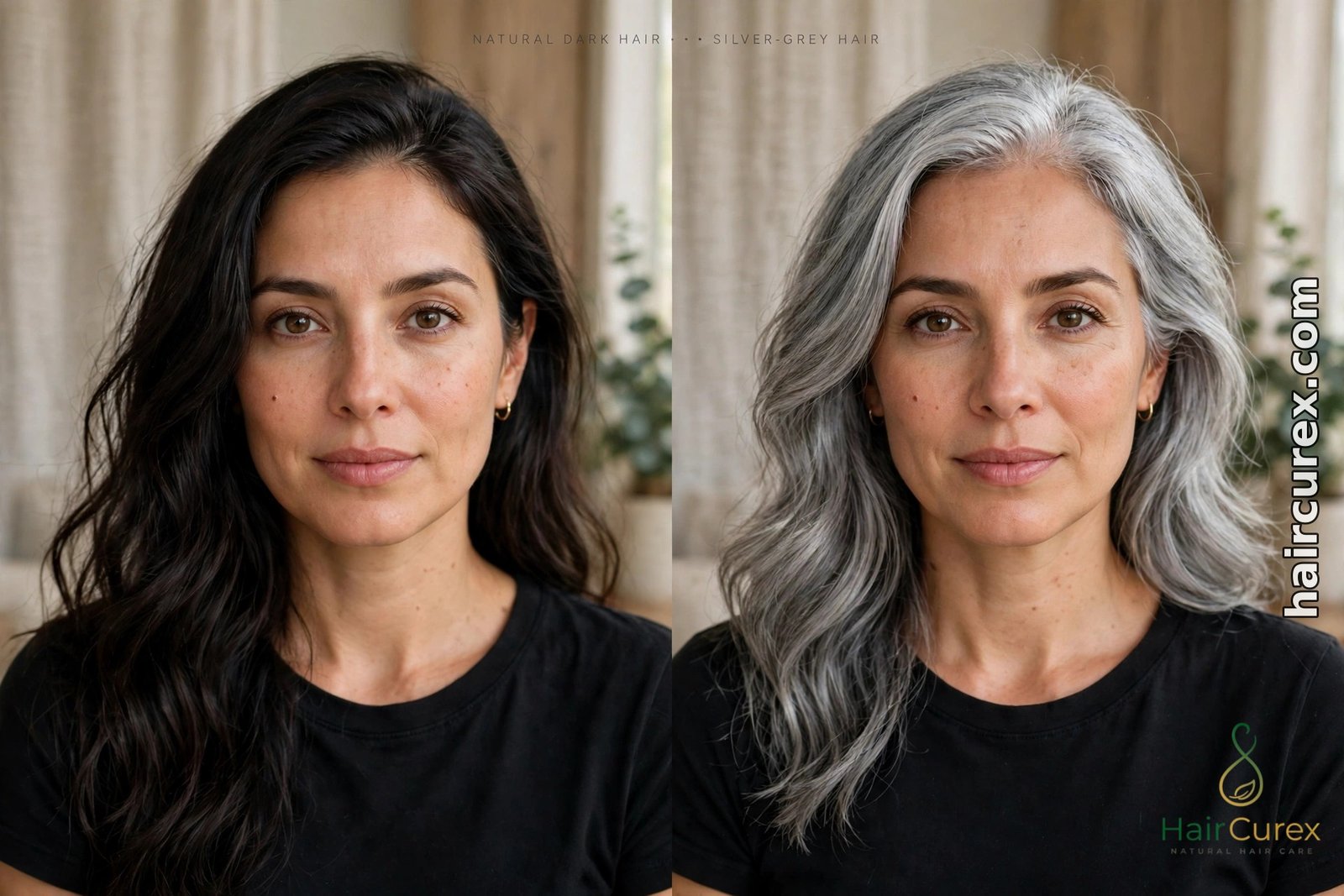
Grey blending sits between the two and is a colourist’s technique, not a natural stage: fine silver highlights or lowlights are woven through the existing colour so the grey grows in softly instead of arriving as a hard line at the roots. It is the option most people actually choose, and it is the one a preview shows worst, because a still photo cannot show how blended strands move. Preview it as a guide to tone — cool silver or warm ash — and let the colourist work out the placement.

Preview all three stages on the same photo. If they all look like the same grey wig at different strengths, the tool is only sliding one shade up and down — a useful preview shows strands for salt-and-pepper, dimension for blending, and one even tone for full silver.
Tool by Tool: The Best Free Options for a Grey Hair Preview
FaceApp is the best-known starting point, and the only one of the four that answers the age question. Its old-age filter greys the hair as part of ageing the whole face, and its hairstyle feature offers a dozen or more female styles with a reference-photo transfer option. The trade-off is the watermark on free exports and many premium styles locked behind a subscription — and the grey comes with an older face, so you cannot judge the colour on its own. Use it to see the direction you are heading, not to pick a shade. You can find it at FaceApp’s official site.
YouCam Makeup is the strongest pick for judging a shade. In an independent 2026 test of twelve hairstyle try-on apps, it came out on top for free, realistic results, with 60-plus styles and more than 150 hair colour filters, including grey and silver shades. Its online editor offers the same styles in the browser with no app install. Because it recolours only the hair, you can compare grey, silver and ash on your real face.
Fotor swaps your face onto a model photo with the hairstyle and colour, which works well when you already have a reference photo of a grey look you love. Its AI hair colour changer is web-based, needs no sign-up, and offers 10-plus styles among its presets. It suits clear, front-facing portraits best.
Photo AI Studio is the best no-fuss option: its hair changer is web-based, needs no sign-up, allows unlimited basic uploads, and exports without a watermark. The style library is more generic than YouCam’s, so use it for a first, fast check before you spend time in a more detailed tool. If you are also testing cuts alongside colour, our AI hairstyle changer guide compares the same tools from the cut-and-style angle.
| Tool | Grey options | Free tier | Watermark |
|---|---|---|---|
| FaceApp | Age filter greys hair with an older face; 12+ female styles | Free previews; premium styles paid | Yes, on free exports |
| YouCam Makeup | 150+ hair colour filters incl. grey and silver; shade picker | Free; realistic shades in free tier | Varies by export |
| Fotor | AI hair colour changer; 10+ preset styles, face swap | Web-based, no sign-up | Varies by export |
| Photo AI Studio | Web-based hair changer, grey and silver shades | Unlimited basic uploads, no sign-up | No watermark on basic exports |
Free tiers change, and the same tool can look brilliant on one photo and flat on another — test your two favourites on the same photo and judge them side by side.
Getting a Realistic Preview: Your Photo Matters More Than the App
A preview can only work with the photo you give it, and most disappointing results start with a bad photo, not a bad app. Use a clear, front-facing photo in bright, even daylight, facing a window, with the phone at eye level and your hair pulled back so the tool can see your hairline. Avoid sunglasses, hats and heavy filters.
Use the same photo across every tool you test, so the differences you see are the tools, not the angles. Take the photo in the hair you actually have: if your roots already show grey, the preview will be far more honest than one painted over fresh dye. An AI hair analysis can also help: it reads your photo for face shape, hair type and texture, giving you a more honest starting point for which grey stages are realistic for you.
Why do previews look too even and too flat? A tool recolours a flat area of pixels, while real grey hair is never one flat colour — it has strands of white, silver, steel and the original colour mixed in, and it catches light differently from dyed hair. A preview shows one shade under one light, so judge it as a rough guide to tone, not as a photograph of your future hair.
Grey Hair Care After the Preview
Grey hair behaves differently from pigmented hair, and the preview will not tell you that. Without melanin, the hair shaft is often coarser, drier and more wiry, and it picks up yellow tones from sun, smoke, hard water and heat styling — the brassiness every silver-haired person complains about.
The practical care is simple. A purple or silver shampoo used about once a week neutralises yellow tones; used too often it can leave a lavender tint, so start weekly and adjust. Condition more, because grey hair loses moisture faster — a weekly deep-conditioning mask does more than any expensive serum. Cut back on high heat, and use a heat protectant when you do style, because grey hair shows heat damage as yellowing. None of this is a miracle routine — it is maintenance, and it is the difference between silver that looks intentional and grey that looks neglected.
Dyeing vs Growing Grey Out — Using the Preview to Decide
The preview earns its keep at this decision, because dyeing and growing out are opposite commitments and the wrong one costs months.
Dyeing over grey means committing to roots every four to six weeks, forever, or accepting a visible line. It suits you if you love your current colour, if your grey is still patchy enough that roots would look untidy, or if you need a polished, uniform colour right now. The preview helps here by showing whether a darker dye or a softer shade suits your skin better as the grey increases.
Growing grey out means living through the awkward stage: the line where dyed lengths meet new grey roots, which takes six to twelve months to grow past. It suits you if you are tired of the upkeep, if your grey is coming in evenly, or if the preview showed you a silver you genuinely like. Grey blending is the middle path: a colourist weaves silver highlights through the dyed lengths so the line softens and the grow-out looks deliberate instead of neglected. If you are unsure where to start, our free hairstyle finder quiz narrows the field by face shape, hair type and length — the cut you choose for the grow-out matters as much as the colour.
Whichever way you lean, preview the stage you are actually heading toward, not the stage you wish you were at — a salt-and-pepper preview is the honest one for the year ahead.
Free vs Paid: What the Free Tier Usually Leaves Out
Free tiers are genuinely useful, but they have predictable limits. Expect a small number of free previews per day, a watermark on saved images, lower export resolution, and the most realistic shades held for subscribers. Watch “free trial” wording: a tool that asks for card details before your first preview is not free, so check when the trial converts and how to cancel it. For a one-off decision — do I suit grey? — the free tier is almost always enough. Pay only if you want watermark-free saves, higher resolution, or a specific premium shade to show your colourist.
Privacy: What Happens to Your Photo?
Your selfie is personal data, so check three things before uploading: how long the company stores your photos, whether uploads train its models, and whether you can delete your photos and account. Prefer tools with easy deletion and a clear privacy policy. A preview needs only the photo you upload, so decline permissions it does not need. Never upload someone else’s photo without their permission, and avoid uploading photos of children. If a tool will not say what it does with your photo, do not use it, however good its previews look.
Taking Your Previews to Your Stylist or Colourist
Take two or three saved previews to your appointment, not twenty: the winning stage and one close alternative, and say what you like about each — the tone, the amount of grey, the way it sits at the temples and the parting. Ask whether your hair can hold that shade and what maintenance it will need. Mention what a preview cannot see: a cowlick, thinning at the crown, heat damage, or old colour in your lengths.
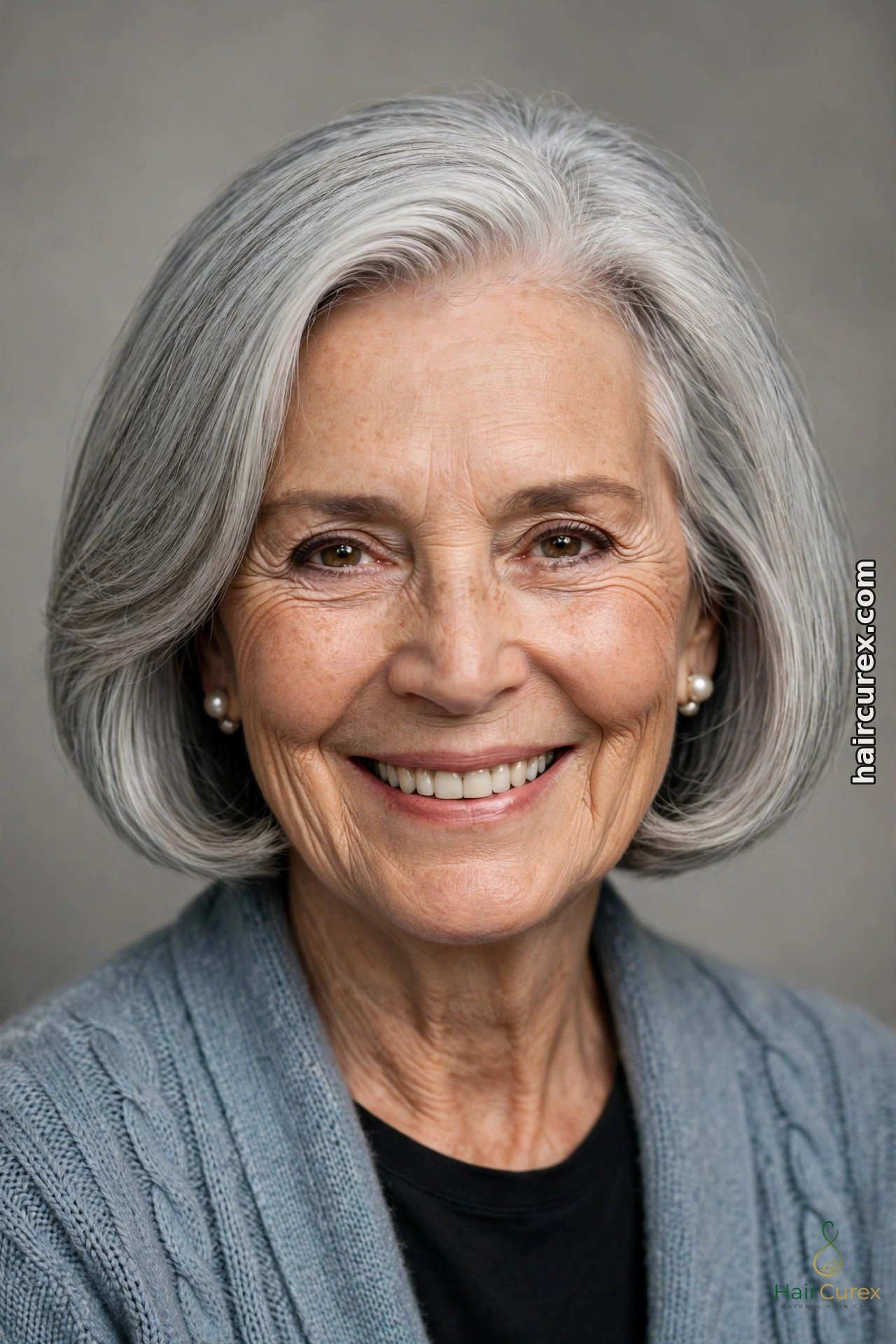

For grey specifically, ask: “Is my grey coming in evenly enough for this, or do I need blending first?” A good colourist will tell you whether your natural grey is cool silver or warm white, whether your skin suits an icy silver or a softer ash, and whether a full silver would need pre-lightening — something no app can judge, because it cannot feel your hair’s porosity or see your real undertones. If you are growing grey out, say so early: a colourist can plan the blending so the awkward stage is months shorter.
The Limits of an AI Grey Hair Preview
Previews are weakest where real grey hair is most individual. Tone is the biggest gap: a tool shows one shade, while real grey is a mix of white, silver and steel that changes with the light. Texture is another: a tool cannot feel whether your grey is soft or wiry, so a smooth silver preview may turn out coarse and flyaway in real life. And no preview can show you the routine: the purple shampoo, the extra conditioning, the trims to keep a silver bob sharp. Used honestly — as a shortlist tool plus a colourist’s second opinion — an AI grey hair preview is one of the cheapest, lowest-risk ways to decide about going grey.
Frequently Asked Questions About an AI Grey Hair Preview
Q: Can an AI preview show me exactly how grey I will go?
A: No. It can show you the shades — salt-and-pepper, silver, full grey — on your own face, but it cannot predict when you will go grey or how fast it will spread. Genetics decides the timing, and no app can read that from a photo.
Q: Which free app is best for a grey hair preview?
A: YouCam Makeup is the best free pick for judging a shade, because it recolours only your hair and offers grey and silver filters. FaceApp is better for the age question — what you will look like older, grey included. Fotor and Photo AI Studio are the fastest free browser options for a first check.
Q: Is FaceApp’s old-age filter the same as a grey hair preview?
A: No. The old-age filter ages your whole face and greys the hair as part of that, so you cannot judge the colour on its own. A hair colour changer recolours only the hair on your real face, which is what you need to choose a shade.
Q: Will a grey preview match a salon silver dye?
A: Not exactly. A preview shows one flat shade under one light; real silver dye is a mix of tones that changes with light, and your starting colour, porosity and existing grey all change the result. Take the preview to your colourist as a guide to tone, not as a colour swatch.
Q: How do I preview salt-and-pepper instead of full grey?
A: Use a hair colour changer, not an age filter, and pick a grey shade at low intensity so your dark hair still shows through. If the result looks like one flat wash instead of strands, the tool is not drawing salt-and-pepper honestly — try another tool or another photo.
Q: Should I show a grey preview to my colourist?
A: Yes. Take two or three saved previews, say what you like about each, and ask whether your natural grey is cool or warm, whether you need blending first, and what maintenance the shade will need.