


An AI haircut generator is a tool that takes a photo of you and creates a realistic preview of a new haircut on your own face, so you can compare lengths, layers and fringe shapes before you book a salon appointment. Most free tools work the same way: upload a clear, front-facing photo, pick a cut or describe it in words, and the tool generates a new version of your photo with that haircut in place.
The preview is a shortlist for your stylist, not a promise — your real hair texture, thickness and growth pattern will still shape the final result — but it removes much of the guesswork from a big chop, a new fringe or a first-time short cut.
What Is an AI Haircut Generator?
An AI haircut generator is different from a simple photo filter. A filter overlays a hairstyle graphic on top of your photo, while a generator rebuilds the hair in the image: it reads your face shape, hairline, lighting and head angle, then renders a new cut that follows those features. That is why a good preview looks like you with a different haircut, rather than you wearing a wig in a photo.
This matters most when the change is hard to undo. A bob, a pixie cut or a blunt fringe takes months to grow out, and describing a cut in words — “a bit shorter, with soft layers” — leaves a lot open to interpretation. A generated preview gives you and your stylist a shared picture to discuss: is the length at the chin or at the jaw? Does the fringe sit straight across or sweep to the side? You can answer those questions on screen, before any scissors come out.
Generators are also different from the try-on tools that swap your whole hairstyle from a preset library. Preset changers are covered in our guide to the best free AI hairstyle changer apps, and our AI hairstyle changer guide explains how those tools work.
A generator, by contrast, is built around creating a specific cut you describe — its strength is precision about length, layers and shape, not browsing dozens of ready-made styles. If you already know the cut you want, a generator is the faster route; if you are still exploring, start with a preset changer and then refine your favourite with a generator.
How an AI Haircut Generator Works
Most generators follow the same four steps. First, you upload a photo. The tool works best with a straight-on, well-lit selfie with your hair pulled back from your forehead and jawline, because it needs to see your hairline and face shape clearly. A side photo, a group shot or a heavily filtered image will all make the preview less reliable.
Second, you choose or describe the cut. Some tools offer a library of named cuts — bob, lob, pixie, shag, fade, long layers — while others accept a written prompt such as “a chin-length bob with soft layers and curtain fringe.” The more specific your description, the better the result: name the length, the layering and the fringe in one sentence, rather than just asking for “a short haircut.”
Third, the tool generates the preview. It keeps your face, skin tone and background as close as possible and changes only the hair, adjusting light and shadow so the new cut sits naturally on your head. Good tools generate several variations at once, so you can compare them side by side instead of judging a single image.
Fourth, you refine or download. If the fringe is too heavy or the layers too long, adjust the prompt and regenerate. When you have a version you like, save it and take it to your appointment. A saved preview is far more useful than a verbal description, because your stylist can see the exact length and shape you have in mind.
The Best Free AI Haircut Generators to Try
Free access is real, but it is usually limited, so plan your tries. The tools below all offer a free starting point, and each suits a slightly different need. Prices and credit allowances change often, so check the current offer inside the tool before you rely on it.
Adobe Firefly offers a free AI haircut generator in the browser. You sign in with a free Adobe account, upload a photo of at least 512 x 512 pixels, and describe the cut you want — length, layers and fringe shape — in a prompt.
Firefly then generates several variations, keeping your face shape and features consistent so the cut is the only thing that changes. It is a strong choice when you want precise control over a specific cut, and you can open the result in Photoshop on the web or Adobe Express to build a before-and-after for your stylist.
YouCam’s online AI hairstyle generator works in the browser with no download. New accounts start with free credits — enough, at the time of writing, to preview a couple of styles from a library of more than 200 — and you can also upload a reference photo of a hairstyle you like and have the tool map that cut onto your own face.
It is a good first try if you want to scan many shapes quickly, and our site’s AI hair analysis guide can help you read what the tool is seeing in your photo, from face shape to hairline.
Other browser tools worth a quick test include AI Ease, insMind and Media.io, which offer free standard try-ons with a library of cuts and colours, and Examples.com’s free AI hair style changer, which keeps your face and background unchanged while it edits only the hair. These are useful as a second opinion: if the same cut looks good in two different tools, it is a stronger candidate than a cut that only works in one.
| Tool | How it works | Free access | Where it runs |
|---|---|---|---|
| Adobe Firefly | Prompt-based, precise control | Free account with daily generations | Browser |
| YouCam online | 200+ preset library plus reference-photo upload | Free credits for new accounts | Browser |
| AI Ease / insMind / Media.io | Preset libraries | Free standard try-on | Browser |
| Examples.com changer | Preset styles, keeps face and background unchanged | Free generation | Browser |
A practical approach is to start with one prompt-based tool and one preset tool. Generate your top two or three candidate cuts in both, compare them on the same photo, and keep only the cut that looks convincing in both. That cross-check catches the cases where one tool has flattered a cut that would not suit your real hair.

How to Get an Accurate Preview
The photo matters more than the tool. Use a photo taken in natural daylight, facing the camera directly, with a plain background and no sunglasses or hat. Pull your hair back so your hairline, forehead and jawline are visible. Avoid screenshots and heavily compressed images, because fine hairline detail is the first thing to blur, and a blurred hairline makes the whole preview less trustworthy.

Describe the cut like a stylist would. Instead of “short hair,” write “a jaw-length bob with blunt ends and no fringe” or “a textured pixie with a short faded nape and longer layers on top.” Include the fringe separately — “curtain fringe” and “straight blunt fringe” produce very different previews — and say whether you want the texture straight, wavy or curly. If the tool lets you keep your glasses or your current colour, say so explicitly, so the only change is the cut itself.
Test the same cut on more than one photo if you can. A front-facing shot shows length and fringe best, while a three-quarter angle shows how layers and volume will sit around the face. If a cut only looks good from one angle, ask your stylist about it before you commit — real hair has to work from every angle, not just the camera’s favourite one.
AI Haircut Generator Results for Different Hair Types
Results are most reliable on straight and wavy hair photographed in good light, because the tool has a clear view of length and shape. Curly and coily hair is harder: the tool must render curl pattern, shrinkage and volume, and many free tools smooth the texture into a generic wave. If you have curly or textured hair, test the tool on styles close to your natural texture, inspect the hairline and edges closely, and treat a preview that looks like the same smooth, straight hair in every result as a warning sign rather than a result.
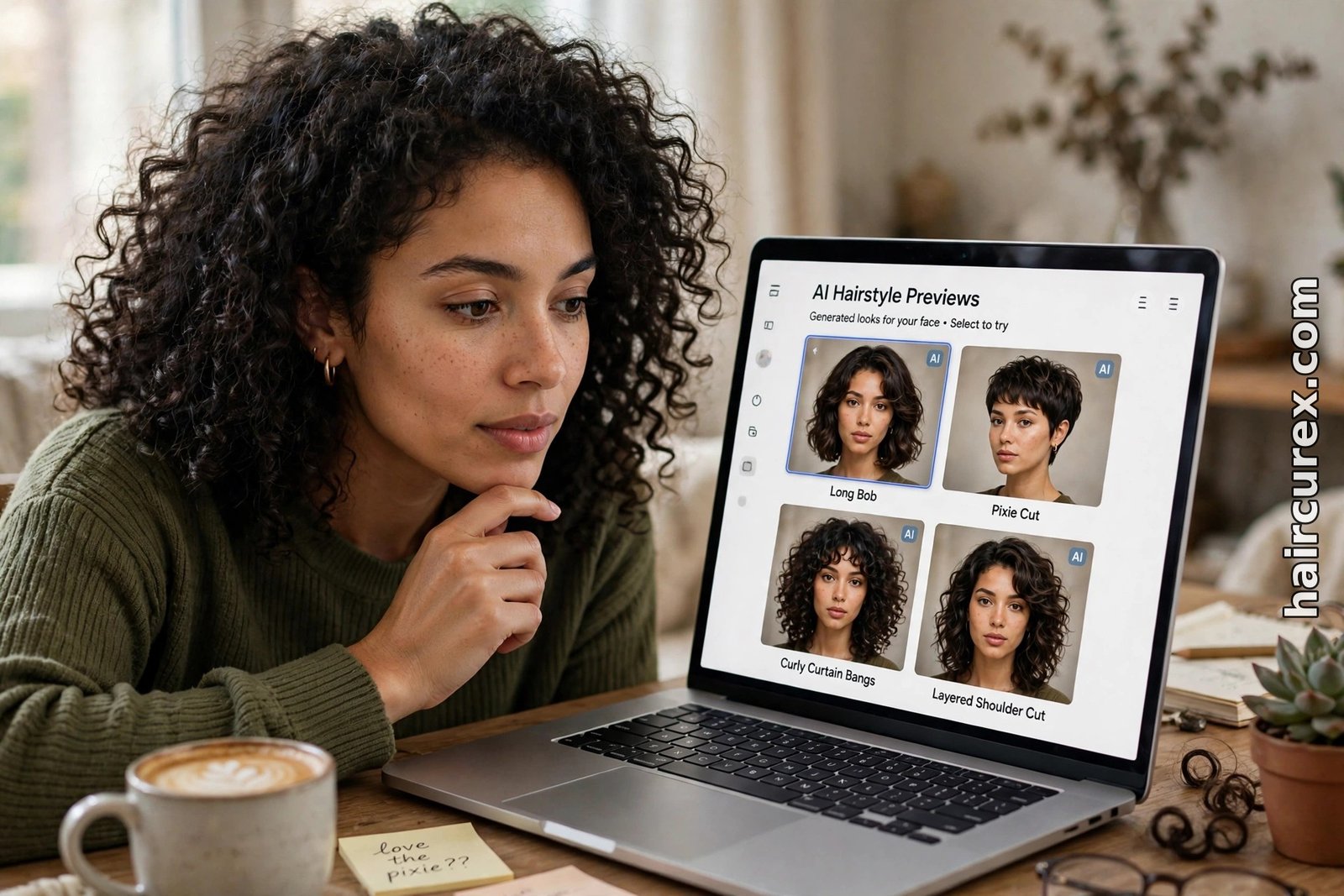
Short cuts also deserve a second look. Fades, crops and pixie cuts depend on the shape of the head and the hairline at the nape and temples, which a front-facing photo shows only partly. Generate the cut, then ask yourself whether the sides and back — the parts you cannot see in the preview — have been thought through. Your stylist can fill that gap, but only if you raise it in the consultation rather than discovering it in the chair.
Colour is a separate question from cut. Many generators can change both at once, but changing both together makes it harder to judge either. If you are considering a new cut and a new colour, preview the cut in your current colour first, decide on the shape, and only then test colours on the winning cut. That way a colour you love does not carry a shape you would not have chosen on its own.
From Preview to Salon: How to Use the Result
Take two or three saved previews to your appointment, not ten. Show your stylist the winning cut and one close alternative, and say what you like about each: the length, the fringe, the layering. Ask directly whether your hair type and thickness can hold that shape, how it will grow out, and how much daily styling it will need. A good stylist will tell you if a preview needs adjusting for your real hair — that conversation is the whole point of the preview.
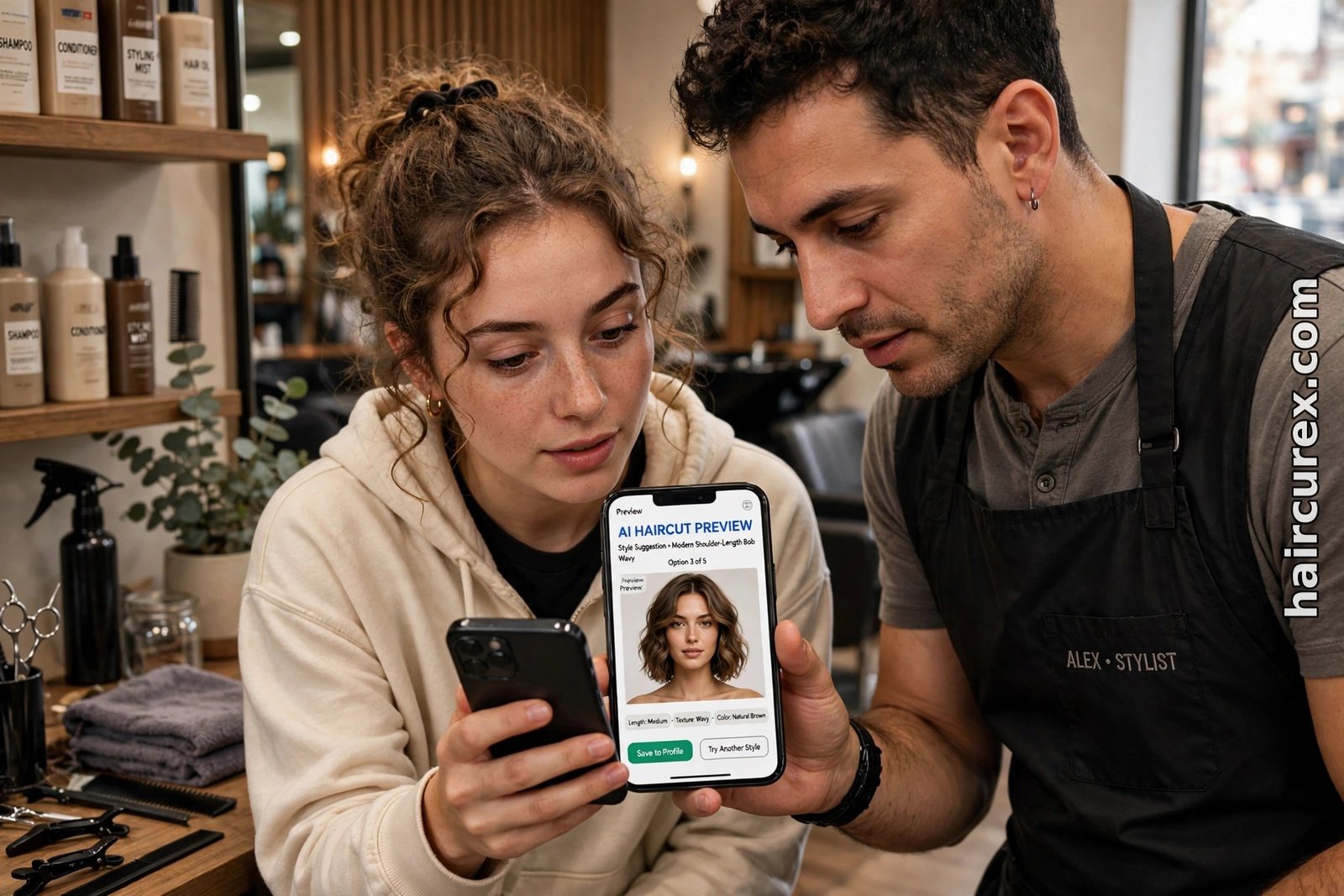
Keep your expectations honest. A preview cannot show how a cut will behave on a humid day, how it will look unstyled, or how it will grow out over eight weeks. It also cannot account for cowlicks, a strong natural parting or thinning at the crown. Mention those to your stylist, because they change which version of a preview is actually achievable. For more on matching a cut to your features before you book, see our guide on which hairstyle suits you. For daily upkeep after your new cut, see our hair care routine for beginners.
Privacy: What Happens to Your Photo?
Before you upload a selfie, check three things: how long the tool stores your photo, whether it uses uploads to train its models, and whether you can delete your uploads. Prefer tools that let you delete photos from your account, avoid granting permissions the tool does not need, and never upload someone else’s photo. Delete your uploads once you have saved the previews you need, and avoid tools that give no privacy policy or no deletion option at all.

Also be careful with free tools that ask for a card for a “free” trial. A genuinely free preview should not need payment details. If a tool requires a card before it generates anything, try a different tool first — there are enough free options that you do not need to hand over payment details to see a first preview.
Two tools to try first: Adobe Firefly: Free AI Haircut Generator and YouCam: AI Hairstyle Generator.
AI Haircut Generator vs AI Hairstyle Changer: Which Do You Need?
A generator creates a specific cut from your description, while a changer swaps your current style for a preset look. Use a generator when you know the cut — a bob at a certain length, a pixie with a fade, long layers with curtain fringe — and want to see that exact idea on your face. Use a changer when you are still browsing and want to scan many styles quickly.
Many people use both: a changer to shortlist, a generator to refine. Our AI hairstyle changer guide and the best free AI hairstyle changer apps roundup cover the changer side in detail, and an AI hair analysis can give you the face-shape and hairline facts that make either tool’s result easier to judge.
Frequently Asked Questions About AI Haircut Generators
Is an AI haircut generator really free?
Most offer a free start — a free account, daily generations or a few free credits — but the free tier is limited. Expect a small number of previews, standard-resolution downloads or a watermark on some tools, and check the current allowance inside the tool before you start.
How accurate is an AI haircut generator preview?
Reasonably accurate for shape and length on a good photo, less reliable for texture, volume and maintenance. Results are best on straight-on, well-lit selfies and weakest on curly or coily hair and poor lighting. Treat the preview as a shortlist for your stylist, not a promise.
Do I need to download an app to use an AI haircut generator?
No. The best-known generators, including Adobe Firefly and YouCam’s online tool, run entirely in your browser on desktop or phone. Apps add saved looks and live camera previews, but they are not required.
What photo should I upload to an AI haircut generator?
A clear, front-facing photo in natural daylight, with your hair pulled back from your forehead and jawline and a plain background. Avoid sunglasses, hats, filters, screenshots and heavily compressed images.
Can an AI haircut generator show me styles for curly or textured hair?
Some can, but this is where free tools vary most. Test styles close to your natural texture, inspect the hairline and edges, and if every result looks like the same smooth, straight hair, try a different tool or rely more on real reference photos.
Is it safe to upload my photo to an AI haircut generator?
It depends on the provider. Read the privacy policy, check how long photos are stored and whether they are used to train models, and prefer tools that let you delete your uploads. Never upload someone else’s photo, and delete your uploads when done.